5 Tips to Get Results Fast with QuickFrame AI
by Jacob Trussell— min read
Stop us if you’ve heard this one before: “I’ve got an ad to get out, and not a lot of time to do it!”. We’ve all been there. The good news? With QuickFrame AI (QF AI), you can go from a small idea to a big on-brand video in a matter of minutes. Its intuitive and easy-to-use tools help marketers produce effective video ads faster (and with way less stress).
There’s a lot you can do with QF AI, but here are five tips and tricks to help you get better results on your very first try.
1. Get Prescriptive with Your Prompts
Vague prompts = vague videos. If you want your output to look like what’s in your head, specificity is your friend. When prompting QF AI, be incredibly prescriptive, spelling out everything: your unique concept, setting, music, characters, dialogue, and actions the viewer will see. You can get more specific than that too, needling into camera movements, or the overarching mood you hope to strike. The more detailed you get, the closer your first generation will be to the final cut.
A helpful pattern to follow when writing prescriptive prompts:
- Concept: “15s CTV spot introducing our new analytics tool.”
- Look & Feel: “Bright remote working space, natural light, modern tech”
- Characters: “2 coworkers, male and female, late 20s–30s, wearing business casual clothes”
- Actions: “Walk-and-talk; one points to dashboard; quick smile beat”
- Script: Character A: “The future is data-driven.” Character B: “And we’re rushing to meet it.”
- Must-Haves: Clever opening hook, on-screen CTA, end card URL
Being specific doesn’t limit creativity — it focuses it. So keep it prescriptive. After all, QuickFrame AI can’t hit the mark if you don’t tell it where to aim.
Want to learn more about QuickFrame AI? Check out our The QuickFrame AI Beta Prompting Handbook and How Styles in QuickFrame AI Beta Supercharge Video Generation to get started generating videos fast.
2. Show, Don’t Just Tell
Building on the idea of being prescriptive, QuickFrame AI responds best when you’re incredibly specific on what to show, not just how scenes should feel. “Vibe” language (words like hopeful, bold, cinematic) absolutely has its place. It can quickly set a mood and gives QF AI a creative north star to build from.
But actionable direction that breaks down how you want that vibe expressed through characters or visuals will help QF AI visualize your intent faster. Think of it as bridging the gap between what’s in your head, and how the AI executes it: by feeding it more granular, concrete actions, you’re giving the model the clarity it needs to turn your direction into exactly what you envisioned.
Here’s a few ways to turn vibes into actionable direction:
- Instead of “excited about the product”, try “grins, gestures to the screen, leans forward slightly.”
- Instead of “deep in thought”, try “leans back, taps pen, stares at ceiling.”
- Instead of ““feels inspired”, try “jots note, eyes widen, nods once.”
3. Use Editor View for Nuanced Refinements
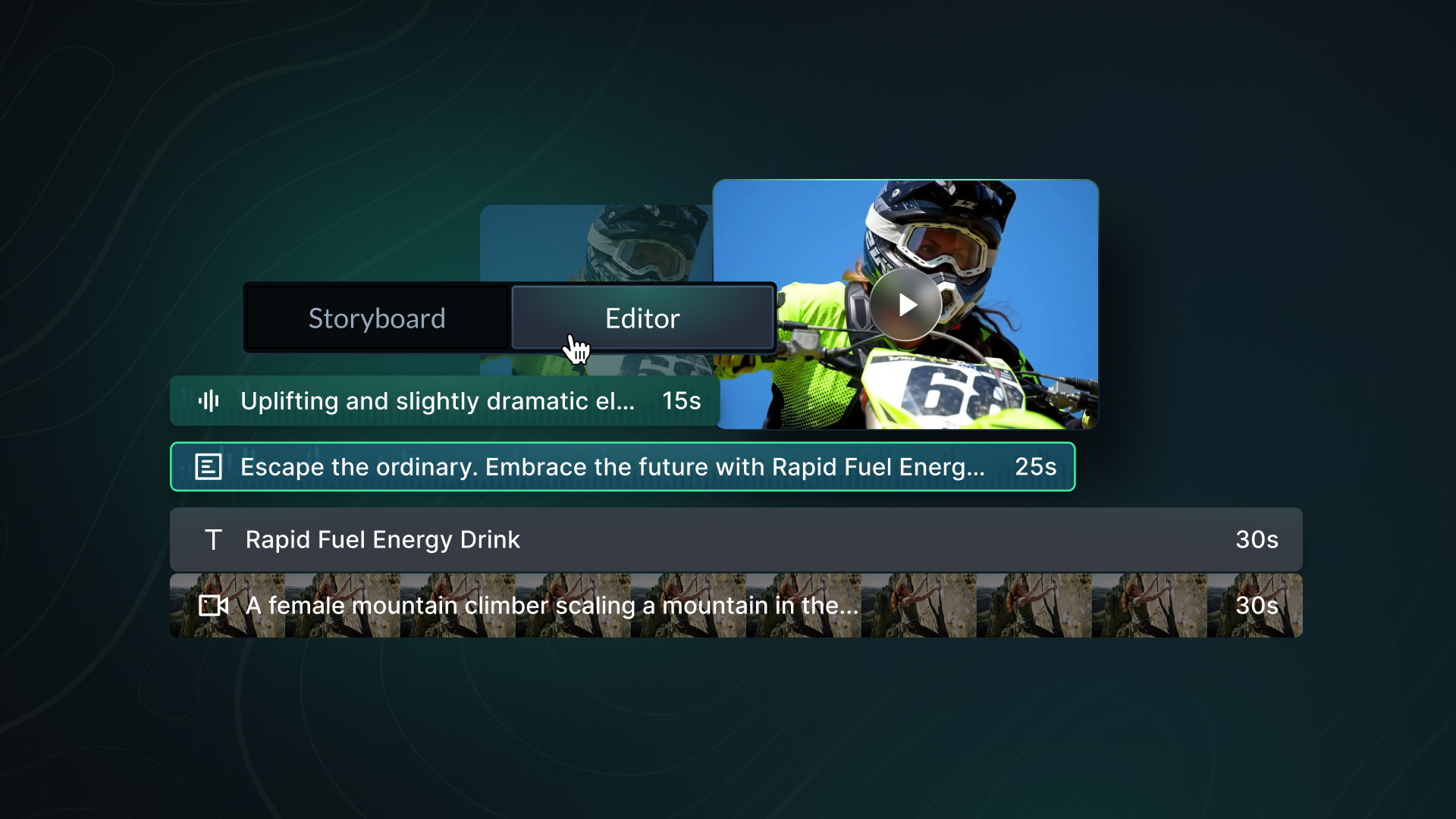
When you generate videos, you’ll be able to make edits in two separate views: Story and Editor.
If Story View is a way to see all the elements of your video at a glance, Editor View is where you can get incredibly nuanced with shaping and polishing your ad. Essentially (as the name implies) it becomes your editing bay, where you can trim clips to improve pacing, reorder scenes for a stronger narrative flow, or apply scene-specific prompts to improve moments without rebuilding the whole spot. You can also manually reposition any on-screen elements (like logos and URLs) and add or swap voiceover, music tracks, and more.
Editor view rewards the details: even the tiniest of trims can have an outsized impact on watchability and recall. The result: a finished ad that’s polished, engaging, and unmistakably your own.
4. Prompt, and Prompt Again (When Necessary)
Your first generation is the starting point, not the finish line. While you’ll aim for perfection from the jump, you likely won’t get there on your first prompt. Generative workflows shine when you treat outputs like drafts, so use a tight feedback loop when determining next steps:
- Generate Video
- Assess Creative
- Identify Missing Pieces
- Re-Prompt With What to Fix
- Rinse and Repeat
Remember, it’s free to generate, so keep prompting until you drill down to the exact creative you had in mind. Small, targeted adjustments are incredibly effective, meaning you can be very precise with what you want to change (i.e. “The male character should have a red shirt”, “change the setting to a kitchen table”, etc.)
Also don’t be shy about experimenting. Maybe one prompt is uber-corporate, another pushes at the limits of QF AI’s funny bone, and a third takes a wild swing in a completely unexpected direction. Keep the winner, fold in any learnings, and iterate again. The goal isn’t endless tinkering; it’s fast, confident convergence on everything that works.
5. Go All In on Subjects for Creative Consistency
If you would like to ensure that your props, cast, and setting remains exactly the same from one scene to the next, you can do that with Subjects.
Subjects allows you to create reusable, AI-generated character, product, and location assets. Think of this feature like your in-house continuity department. Instead of crossing your fingers and hoping that the next scene you generate includes the same character or product from the last scene, you can create a Subject once, and apply it to every video you make after that. The result? Consistent creative, faster production, and fewer “why does everything look different?” moments.
Best practices for using Subjects includes:
- Build Your Library Early: Create Subjects for recurring characters, products, or locations as soon as you start exploring ideas
- Mix Prompts and Visuals: Combine text prompts with photo references or URLs to refine each Subject’s look and vibe
- Reuse Strategically: Bring Subjects back across seasonal campaigns or different ad formats (like CTV and social) to create recognizable continuity
Make Your Next Ad Today with QuickFrame AI
Talking about QuickFrame AI is a blast. But using it is even better. The moment you see your first prompt come to life, you’ll get it — this is how AI video ad production should feel: fast, flexible, and incredibly satisfying. The best first step for getting started? Just getting started. Create an account with QuickFrame AI for free today to see what it can do for you.